Invite your team
Teams are part of the Pro plan, with team seats added.
On the web
Adding seats: sign in at shelftalkerapp.com, open the Portal, and tap Add Seat under Team Seats.
Set up your organization
- Tap the handshake at the bottom of the screen.
- Tap Create Organization, type your business name, and save it.
Invite someone
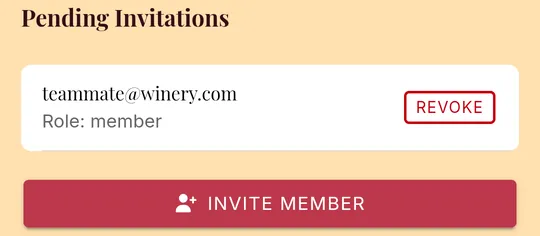
- On the handshake screen, tap Invite Member.
- Type their Email and choose a Role: a Member makes and uses designs, and an Admin can also manage the team.
- Tick the box to confirm the invite doesn't break any tied-house laws.
- Tap Send Invite.
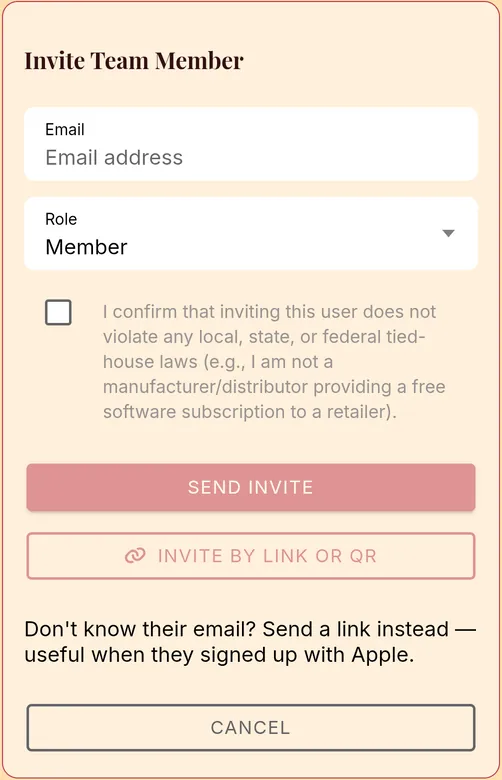
Don't know their email address? Tap Invite by Link or QR instead to copy a link, send it in a message, or show a QR code for them to scan. The link works once and expires in 7 days.
The person you invite taps Accept on their own handshake screen, or opens the link.
Share designs with your team
- Tap the floppy disk at the bottom of the screen.
- Swipe a design to the left and tap the people icon.
- Choose View only or View and edit, then tap Save.
Your team finds it under Team Library in their saved designs.
Remove someone
On the handshake screen, tap the person with a minus next to their name.
Need to hand the organization to someone else? Contact support and we'll help.
Still stuck? Contact support