Reuse wines from your product list
The Product Library is part of the Pro plan.
Your Product Library holds the details of each wine you sell, so you only type them once.
Add a wine
- Tap the card with lines on it at the bottom of the screen. This is your Product Library.
- Tap the round + at the bottom right.
- Fill in what you know: name, winery, vintage, varietal, tasting notes, price and so on. Add a bottle photo under Images.
- Tap Save.
Already filled in a design? Tap Save as Product at the top of the edit page to add that wine to your library.
Fill a design from your library
- Open a design to edit it.
- Tap Fill from Product Library at the top.
- Tap the wine. Its details fill the design.
- If you'd already typed something different, choose Replace to use the library's details, or Keep Mine to fill only the empty boxes.
- Tap Save.
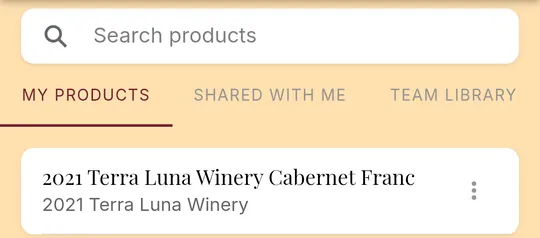
On a team, turn on Share with my team when you add a wine, and your team will find it under Team Library.
Still stuck? Contact support