Add your logo and colors (Brand Kits)
Brand Kits are part of the Pro plan.
Make a brand kit
- Tap the building at the bottom of the screen.
- Tap New Brand Kit.
- Type a Name, such as your shop or winery.
- Under Colors, tap the + square to add a color. You can add up to 10. Your first color is used for the bars and accents on new shelf talkers.
- Choose a Primary Font, and a Secondary Font if you'd like one.
- Under Logo, tap Select Logo from Library and pick your logo, or upload it.
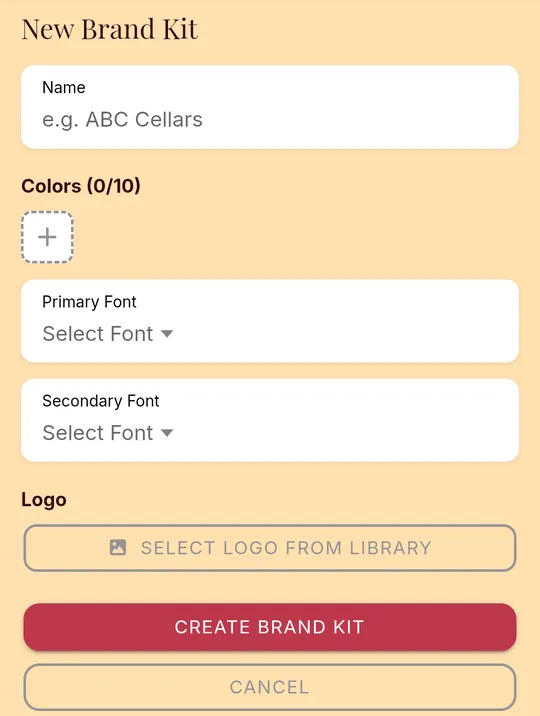
- Tap Create Brand Kit.
Use it
- If you have more than one kit, tap the round button next to the one you want to use.
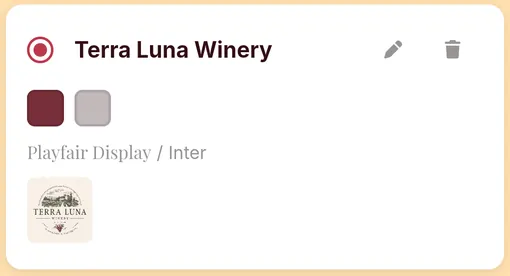
- When you pick a color on a design, your brand colors are offered first.
- When you add an image, tap Use Brand Logo to put your logo on the design.
To change a kit, tap its pencil. To delete it, tap its trash can.
On a team, the team's owner manages the brand kits, and everyone on the team can use them.
Still stuck? Contact support