Keep favorites and organize designs into folders
Favorite a design style
- On your home screen, tap a design.
- Tap the wine glass. It fills in when the design is a favorite. You'll also find the wine glass at the bottom right of every edit page.
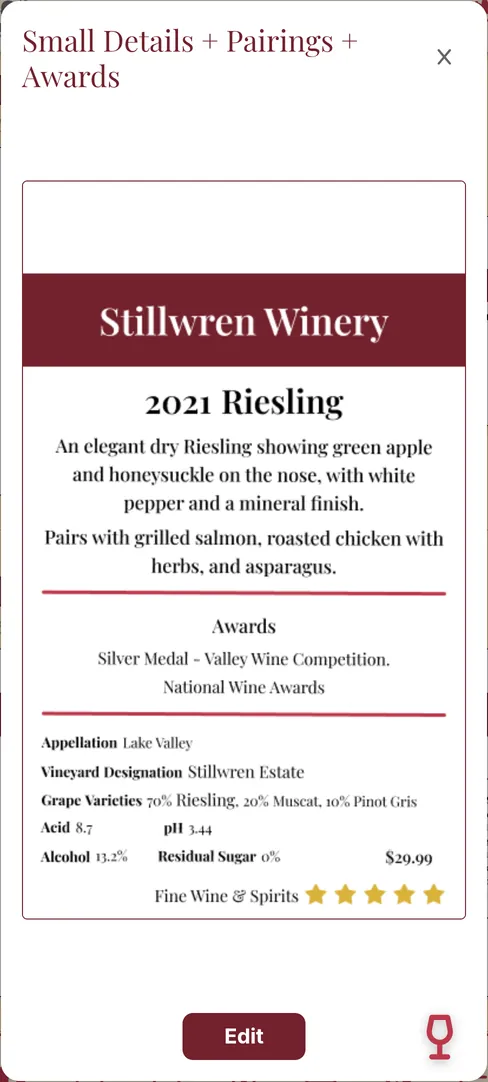
- Your favorites appear in My Favorites at the top of your home screen.
Favorites are design styles, so a favorite opens blank, ready for a new wine. To keep your filled-in designs tidy, use folders.
Make folders
Folders are part of the Pro plan.
- Tap the floppy disk at the bottom of the screen.
- Tap Create Folders. Once you have folders, tap the gear beside them instead.
- Type a folder name and tap +. To put a folder inside another one, tap the folder with a plus next to it.
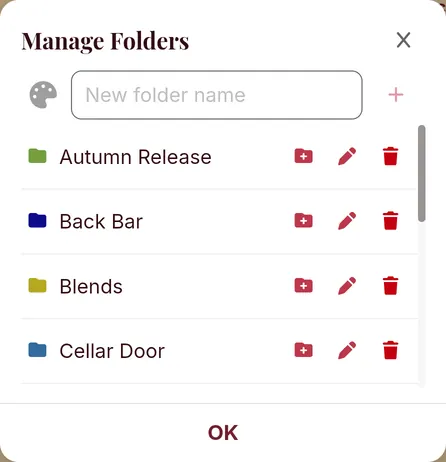
- Tap OK.
Move a design into a folder
- Swipe the design to the left, or tap its three dots.
- Tap the open folder.
- Choose the folder and tap Move.
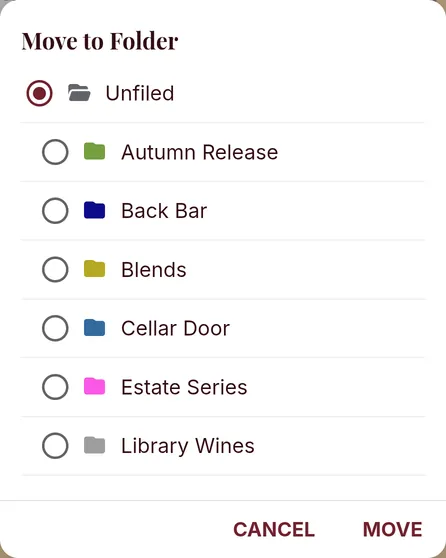
Tap a folder name at the top of your saved designs to see only what's in it. All shows everything, and Unfiled shows designs that aren't in a folder.
Still stuck? Contact support