Save as a PDF or share a design
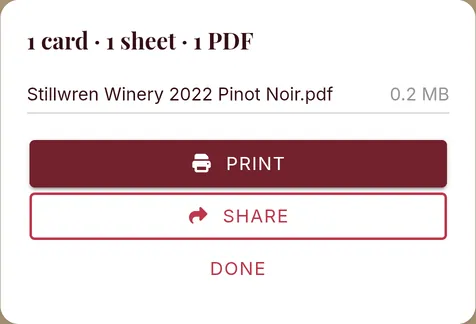
Save a PDF
- Open the design and tap Preview.
- Tap the printer button, choose your options, and tap Create PDF.
- Tap Share, then choose where the PDF goes: save it to your files, email it, or send it to someone who prints for you.
Send a picture of the card
- Open the design and tap Preview.
- Tap the picture button under the card.
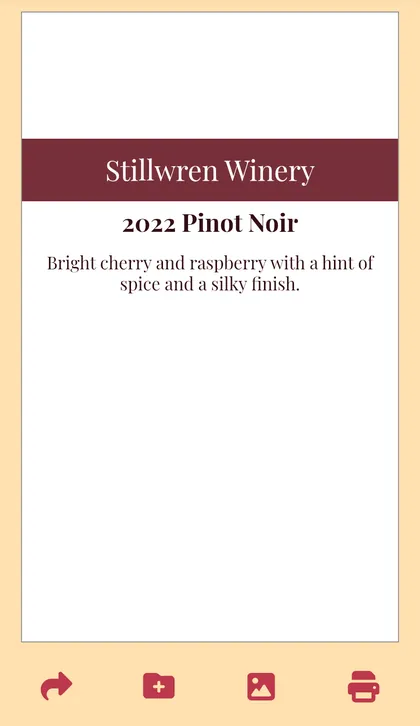
- Choose how to send it, such as Messages or email.
Share a design with someone
Sharing designs and collections is part of the Pro plan.
- Save the design first.
- Tap Preview, then the curved arrow button.
- Type their email address and tap Share. Or tap Copy link, Share via… or Show QR code. A link works once and expires in 7 days.
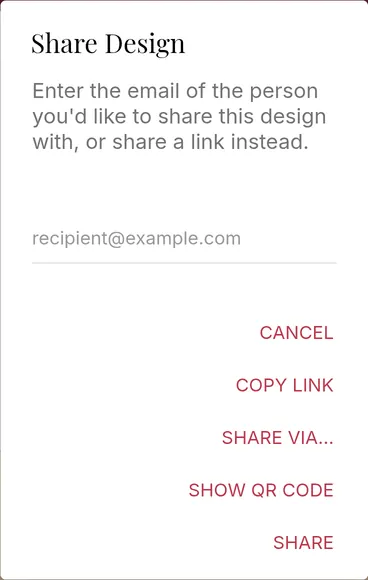
- They'll find it under Shared with Me in their saved designs.
To change whether someone can edit it, tap the share count on the design in your saved designs.
Share a whole collection
A collection is a list of designs behind one link, such as a tasting menu.
- Tap the floppy disk at the bottom of the screen, then Collections.
- Tap New Collection and give it a name.
- Choose your settings: Password protect, Set expiration date, and whether it updates when you change a design.
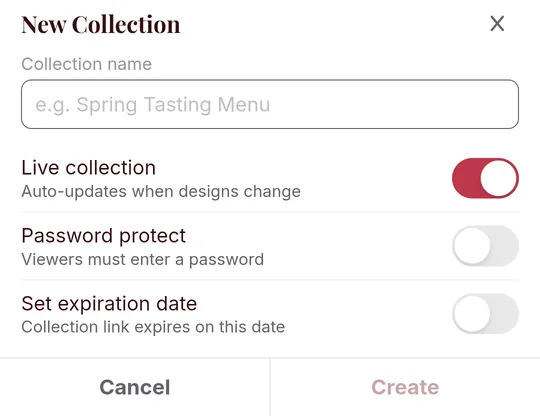
- Tap Create, then tap + to add designs.
- Use the link or QR code buttons to share it.
To stop sharing, open the collection, tap Edit Settings and switch the link off, or delete the collection.
Still stuck? Contact support