Fill in a wine and add a bottle photo
Type the details
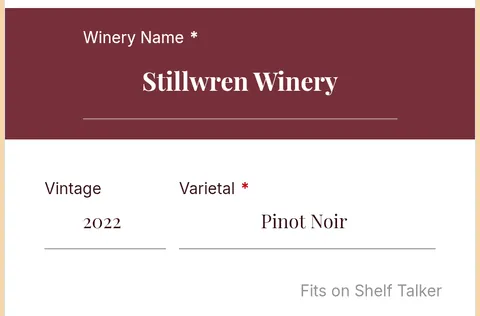
- Open a design to edit it. Each box has a label, such as Winery Name, Vintage, Varietal, Description or Price.
- Tap a box and type. Each design asks for different details, so fill in the ones you see.
- Check the line under each box. Fits on Shelf Talker means it will fit. If the words are too long for the printed card, a red message says so, so shorten them.
- To show your logo at the top instead of the winery name, switch Text to Image and tap Select Header Image.
- Tap Save when you're done.
Typed this wine before? Tap Fill from Product Library at the top instead. See Reuse wines from your product list.
Add a bottle photo
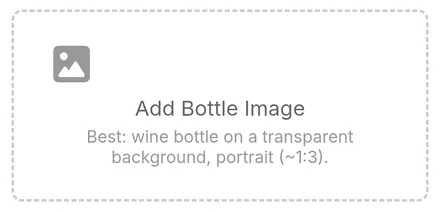
- Tap Add Bottle Image, the box with a picture in it.
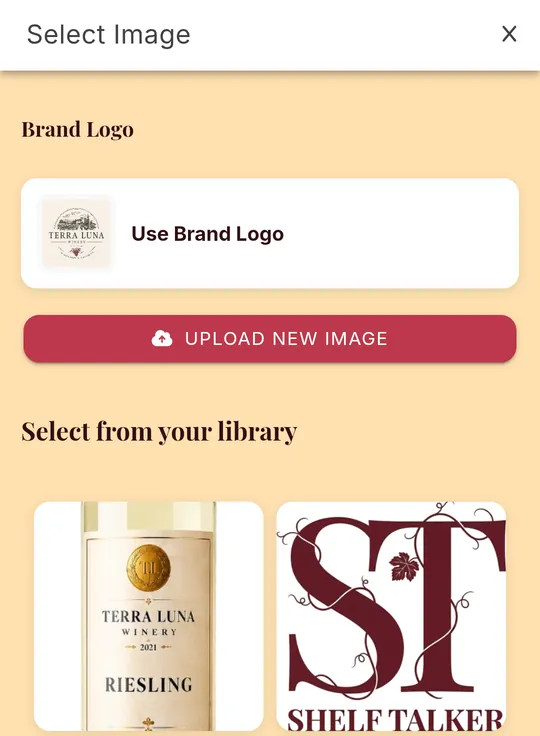
- Pick a photo you've used before, or tap Upload New Image.
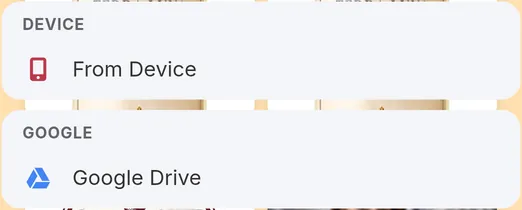
- Tap From Device to choose a photo or take one with your camera. You can also tap Google Drive.
- The photo appears on your design. Tap Save.
Best results: a photo of just the bottle, standing upright, on a plain or see-through background.
To use a different photo, tap the photo and choose Change Image. To take it off the design, tap the round X on its corner.
Every photo you upload is kept behind the picture icon at the bottom of the screen, so you can use it again on other designs.
Still stuck? Contact support