Signing in and your account
Sign in
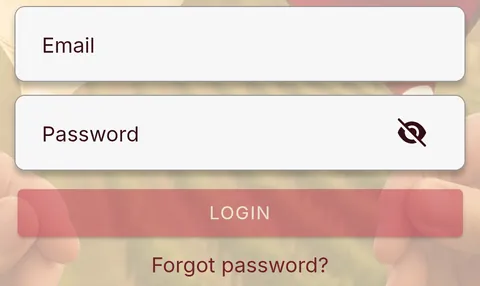
Type your Email and Password and tap Login. Or tap a round button below them to sign in with Google or Microsoft.
On iPhone
On iPhone you can also sign in with Apple.
If you signed up with an email address and later use one of the round buttons with that same address, both open the same account.
Make an account
- On the sign-in screen, tap Sign up.
- Fill in your name, email and a password. The password needs at least 8 characters, with a capital letter, a small letter and a number.
- Tick both boxes and tap Sign Up.
- Open the email we send you and confirm your address. Then sign in.
No email? Check your spam folder. Or try to sign in: if your address isn't confirmed yet, a Resend confirmation email button appears, and tapping it sends a new one.
Forgot your password
- On the sign-in screen, tap Forgot password?
- Type your email and tap Get code.
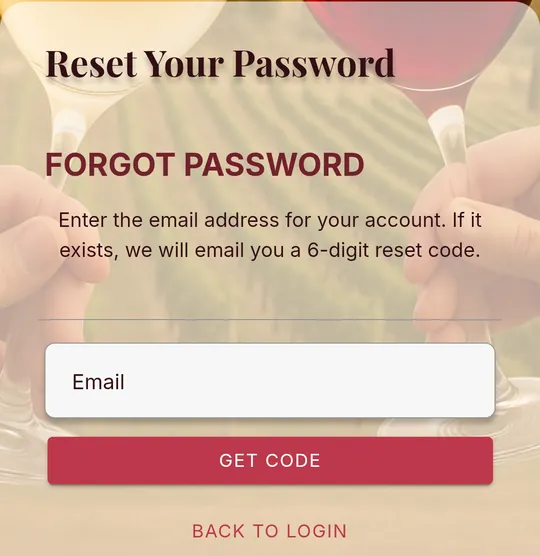
- We email you a 6-digit code. Type it in and tap Verify code. The code expires after 15 minutes.
- Type a new password twice and tap Change password.
- Tap Back to Login and sign in.
Change your details or sign out
- Tap your round photo at the top left of the screen.
- Scroll down and tap Update Profile.
- Change your business name, country, state or time zone. If you signed up with an email address, you can change your name here too.
- Tap Save Preferences.
To sign out, tap your round photo, then Log Out.
Delete your account
- Tap your round photo at the top left of the screen.
- Scroll to the bottom and tap Delete Account.
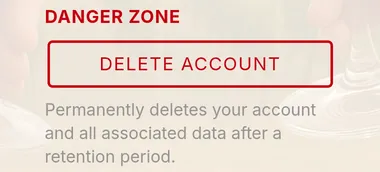
- Follow the steps on the screen.
If you own a team that still has members, remove them first. Deleting your account doesn't cancel a subscription, so cancel that with the store as well.
Still stuck? Contact support